Stripe Checkout payments for public bookings
Let visitors pay for day passes online before their booking is confirmed. Each space connects their own Stripe account — funds go directly to them and OhMyDesk takes no cut.
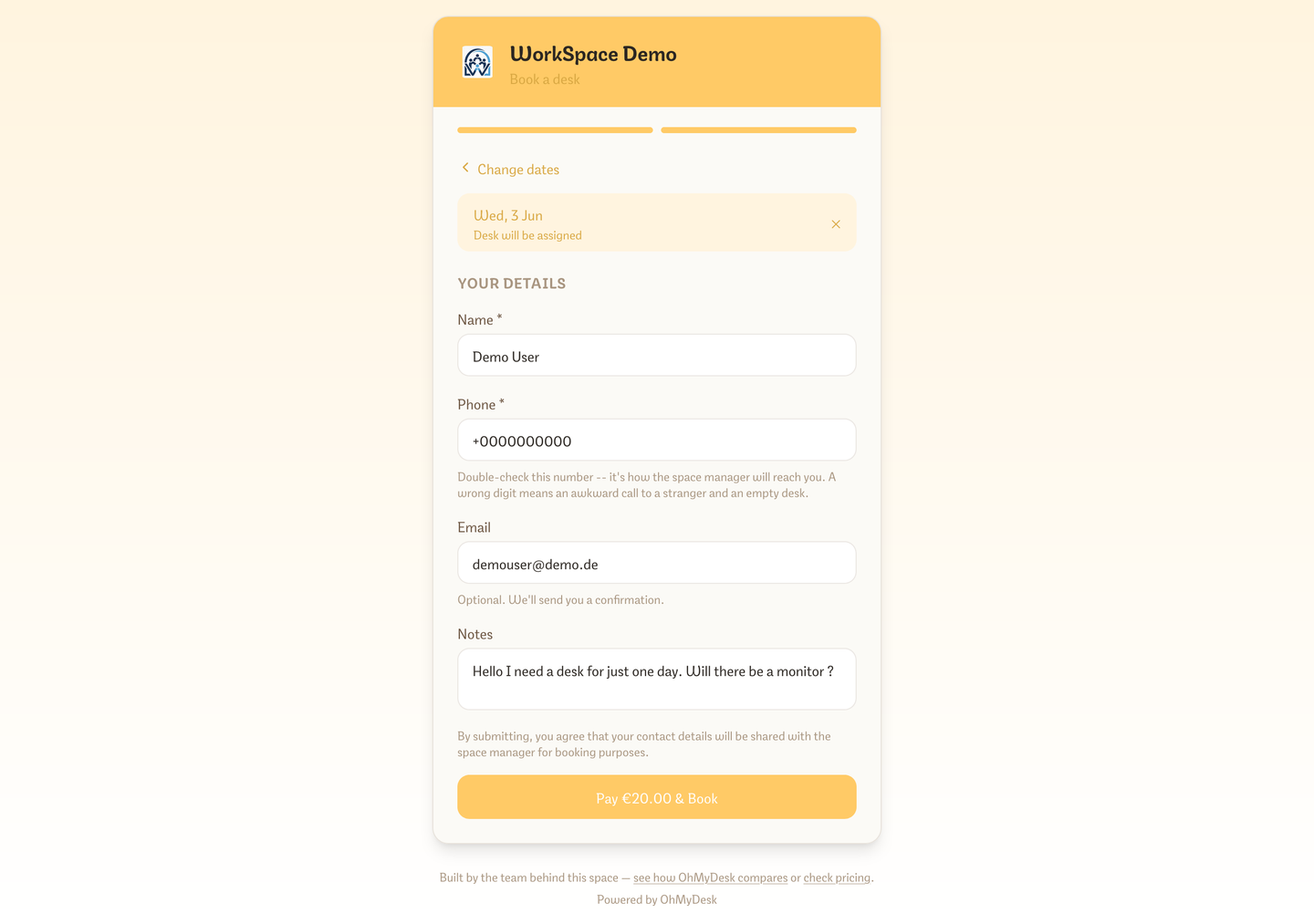
Enable paid public bookings in a few minutes. Each coworking space connects their own Stripe account from Settings → Integrations → Stripe (just paste your API keys, no Stripe Connect onboarding). OhMyDesk adds its webhook to their Stripe account automatically, so every payment turns into a booking. Then pick what is sold by card under Booking page → Desks, Rooms and Offices (Pay or request under Desks, Card payment for under Rooms and Offices, and Show on page on each card): day passes, weekly and monthly passes, flex bundles, hot desk passes, meeting rooms or private offices, and each plan on its own. Visitors go through Stripe Hosted Checkout, payment confirms the booking automatically, and the funds land directly in your Stripe account.
What you get
- Connect your own Stripe account — OhMyDesk never touches the money
- Per-feature toggle: turn paid bookings on or off without disconnecting Stripe
- Hosted Stripe Checkout — no card data ever touches OhMyDesk
- Booking auto-confirmed via webhook after successful payment
- Multi-day desk bookings charge the same per-day rate as a single day pass — pick two days, pay for two
- VAT is charged the same way on desks, rooms, and plans — listed prices are net or already-gross, one setting
- Every online payment creates a paid invoice, so it shows in Payments and Invoices
- A paid day, weekly, or monthly desk pass can include public extras as their own Stripe lines. On a weekly or monthly subscription the extras renew with the pass, and each renewal invoice lists them. The operator or the member can stop one extra at the next renewal and leave the pass in place, or add an extra back from the pass card or member portal
- Visitors who leave checkout can try again; unpaid meeting-room holds expire after 30 minutes and never create an invoice
- A public booking with an email you already have updates that member — company name, address, and VAT land on the member and the invoice
- Paid bookings show a Stripe-coloured indigo marker on the calendar
- Opt-in recurring weekly and monthly passes via Stripe Subscriptions — off by default in Settings → Integrations → Stripe; auto-charges each period, reserves the desk with continuity, and syncs smart lock access
- Members who stop a recurring pass keep it until the end of the period they already paid for
- Multi-currency support — visitors pay in whatever currency your space is set to
- See how guests pay for each thing you sell: under Booking page → Desks every priced type and plan card shows card payment, a request, bank transfer or not shown. A warning with a Sell by card button appears when you take card payments but a priced type is not sold by card. When you first connect Stripe, your priced day pass, Flex, weekly and monthly passes are sold by card straight away, and so is the first priced plan you add later
- Coupon codes for paid day desks and one-off passes (including hot desk passes): create a percent or amount-off code in Plans → Coupons, choose the products it discounts (day desks, weekly, monthly, flex or hot desk passes), set an optional end date and a maximum number of uses, and share a ready-made booking link. Stripe charges the discounted price; extras stay at full price. A 100% coupon, or an amount that covers the desk price for all chosen days, makes the desk free. With no paid extras, the guest sees a total of 0 and a Confirm booking button, Stripe asks for no card, and the booking, confirmation email and coupon use are still recorded. Off until you turn it on
Frequently asked questions
- Can I offer discount codes for online desk and pass bookings?
- Yes. Open Plans → Coupons, add a coupon (OhMyDesk generates the code) with a percent or fixed amount off, which products it applies to (day passes, weekly, monthly and flex passes — all by default), an optional end date and an optional maximum number of uses, then turn on "Offer coupons on the booking page". Guests enter the code on the public booking page, or open your Copy link URL with the code filled in, and Stripe Checkout charges the discounted pass or desk price. Extras stay at full price. Each code shows how often it was used and how much it discounted.
- How do I see which products guests can pay for by card?
- Open Booking page → Desks. Every priced type and plan card says what a guest gets: card payment, a request, bank transfer, or not shown. If card payments are on but a priced type is not sold by card, a warning says so and a Sell by card button fixes it. When a guest sends a request that is not paid, the owner email says "Unpaid request" and that nothing was charged.
- Can a coupon make a desk free?
- Yes. A coupon can take 100% off, and an amount coupon that covers the desk price for all chosen days also makes the desk free. With no paid extras, the guest sees a total of 0 and a Confirm booking button, Stripe asks for no card, and the booking, confirmation email and coupon use are recorded as usual. Paid extras still cost their full price, so a guest who adds one pays for it by card.
- Which bookings can use a coupon?
- Coupons apply to paid day desks and pass checkouts (day, weekly, monthly and flex) that guests pay by card through Stripe, according to each code's product list. Bank transfer, desks that are already free, meeting rooms, private offices and passes that renew automatically through Stripe show no coupon field.
Try every feature free for 3 months.
No credit card. Set up your space in under two minutes.
Start Free Trial